
This post is about implementing web filtering as a service using a cloud hosted pfSense appliance. Using the setup documented below it is possible to offer web and URL filtering as a service for a safe web experience for schools, businesses and homes. It will also allow visibility into users’ traffic for compliance and logging purposes. This setup was tested on a pfSense appliance v2.4.5-RELEASE-p1 that was installed on an AWS EC2 instance (that setup is outside the scope of this post).
Users will use OpenVPN to connect to the pfSense appliance – which will be the OpenVPN server – where their traffic will be transparently intercepted, scanned, logged and forwarded or filtered based on our defined policies. Squid proxy will be deployed in transparent mode for web traffic interception and logging. SquidGuard will be used for web filtering.
OpenVPN Setup
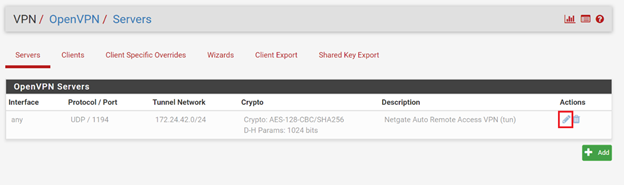
To configure OpenVPN go to VPN => OpenVPN. The pfSense AWS appliance already has an OpenVPN server configured which is in disabled state. Select the edit icon at the right to set it up:
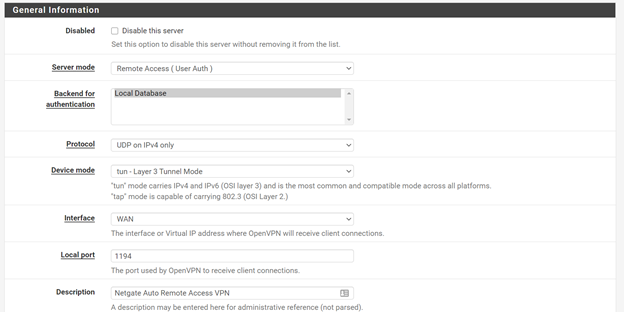
This opens up OpenVPN server settings. Uncheck the Disabled option to enable OpenVPN server. Select Server Mode as Remote Access (User Auth). Protocol should be “UDP on IPv4 only”. The rest of the settings should be kept as per the defaults:
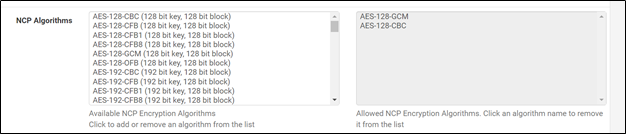
Select these as the NCP algorithms:
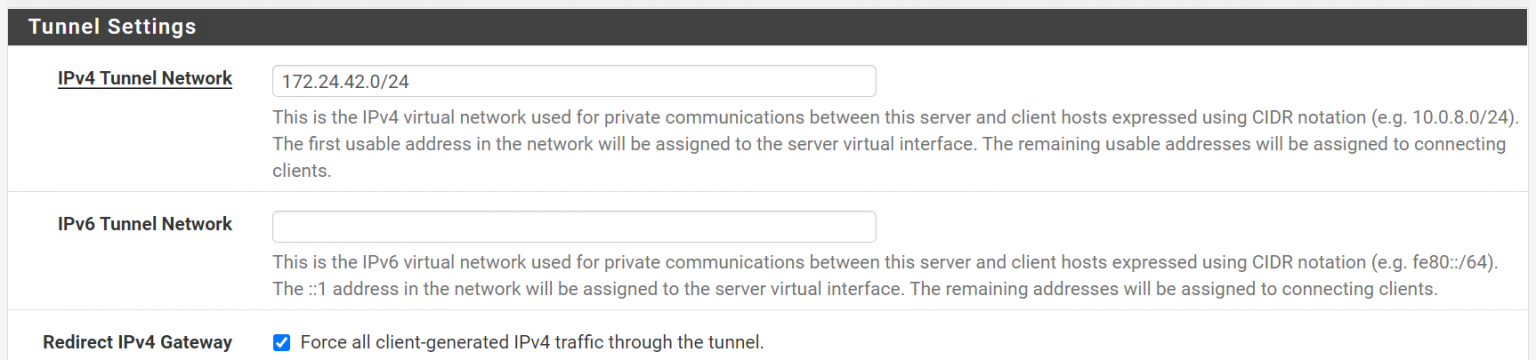
Update the default subnet if needed. Redirect IPv4 Gateway option should be checked:
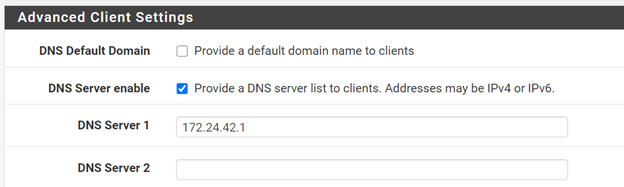
In DNS Server settings provide the IP of local Unbound DNS Resolver which we will setup later:
In Gateway Creation select IPv4 only:

Go to System => Package Manager to install OpenVPN Client Export package. This package allows us to export .ovpn configuration files for OpenVPN clients.
To export .ovpn file go to VPN => OpenVPN => Client Export. In Host Name Resolution select Other, enter the WAN IP address of the AWS pfSense Instance and save these settings:

Download configurations for your required client type (for Windows select Most Clients):

Create a local user in System => User Manager for authentication ( it is also possible to use RADIUS authentication instead of local).
Use the downloaded configuration file and the login credentials created in User Manager to connect using OpenVPN client:

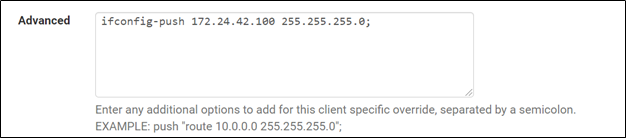
To setup static IP for an OpenVPN client (so that IP based rules can be later setup for that client) go to VPN => OpenVPN => Client Specific Overrides and click Add.
In name field enter the username of the VPN user, and in Advanced enter the static IP address they should get in this format:
ifconfig-push 172.24.42.100 255.255.255.0;
Press Save to save changes.
Interface & Firewall Setup
In pfSense go to Interface => Assignments and assign the OpenVPN ovpns1 interface to LAN (this assignment will come in handy when we have to setup Squid proxy later):
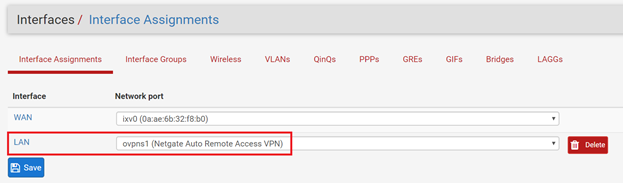
Select LAN and enable this interface.
In Firewall rules make sure the rules allow OpenVPN access and other related services.
DNS Server Setup
It is vitally important that the clients and pfSense appliance both use the same caching DNS server in this setup, otherwise many popular websites like Google, Youtube, Reddit will not open (check this link for the technical explanation). Therefore we will setup Unbound DNS server on pfSense.
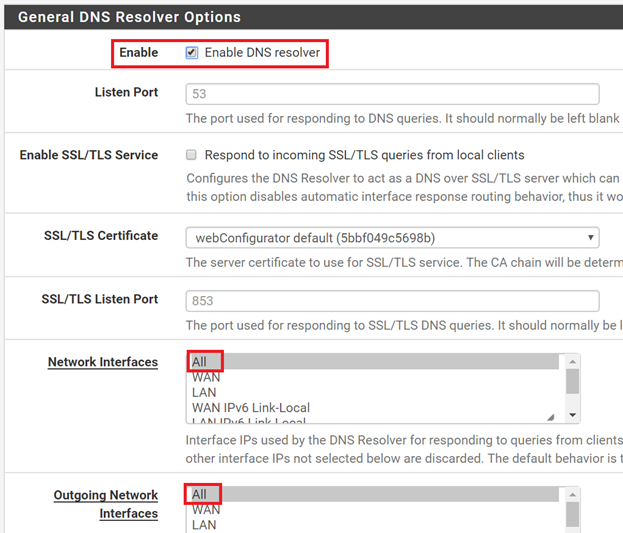
Go to Services => DNS Resolver. Enable it and make sure it is enabled on all interfaces.
Uncheck DNSSEC Support:

Click Save at the bottom of the page.
Squid & SquidGuard Setup
Go to System => Package Manager and download the packages named Squid and squidGuard. Squid is a widely used proxy server. SquidGuard is a URL filtering package that works with Squid.
After installation go to Services => Squid Proxy Server. First, we need to setup Local Cache. Go to Local Cache, set Hard Disk Cache Size as 500 MB and Clear Disk Cache once.
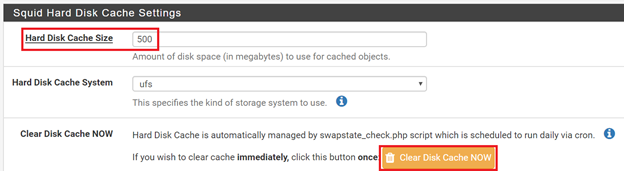
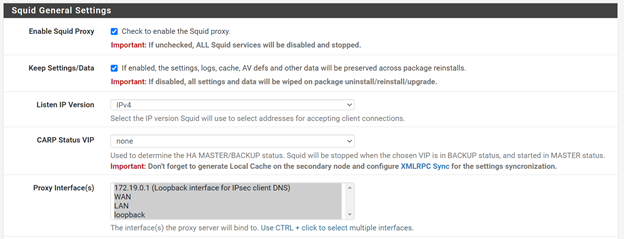
Click Save and go back to the General tab. Under Squid General Settings check Enable Squid Proxy option and select all interfaces in Proxy Interface(s).
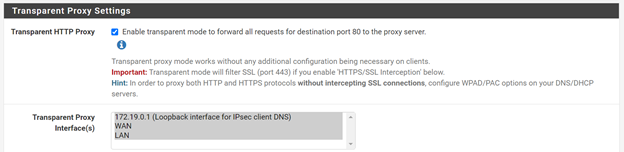
Under Transparent Proxy Settings enable Transparent HTTP Proxy and select all interfaces.
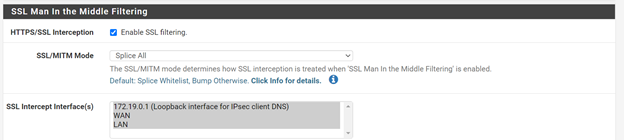
Similarly, under SSL Man in the Middle Filtering enable HTTPS/SSL Interception, SSL/MITM Mode should be “Splice All” and select all interfaces:
Enable Access Logging and click Save at the bottom of the page:

Squid Proxy has been set up.
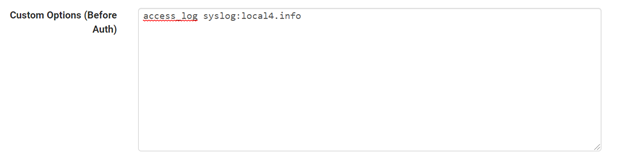
To send Squid logs to syslog click on the “Show Advanced Options” button at the end of the page (in General tab). In Advanced Features add the following directive in Custom Options (Before Auth) – it will send all Squid logs to syslog with the given facility and severity level:
access_log syslog:local4.info
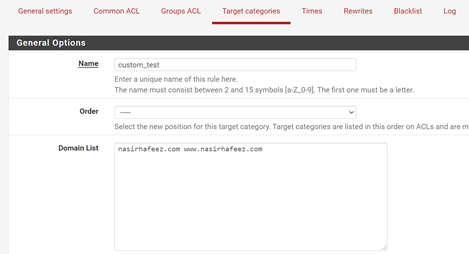
Now we will configure SquidGuard Proxy Filter. Go to Services => SquidGuard Proxy Filter. Go to Target Categories and create a rule for URL filtering. In Domain List enter the domains you want to blacklist or whitelist:
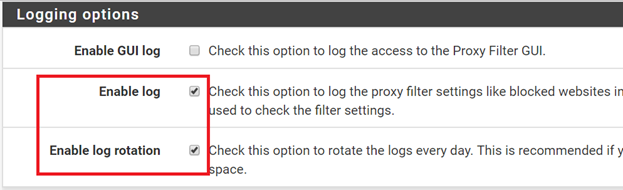
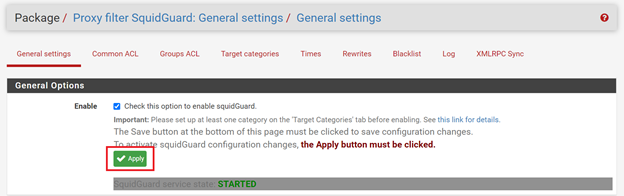
Under General Options check Enable and click Apply. Under Logging options check Enable log and Enable log rotation.
Click Save and Apply.
To apply common rules that apply to all users go to Common ACL and setup access rules like this:
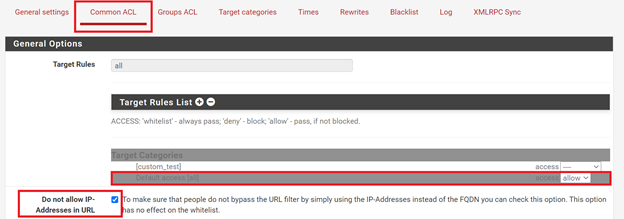
The “Default access [all]” rule applies to all traffic. If we set it to “allow” it will allow all websites by default and any domains that need to be filtered will have to be blacklisted manually. If we set it to “deny” all domains will be blocked by default and any domain that needs to be allowed will have to be whitelisted manually.
It’s a good practice to check “Do not allow IP-Addresses in URL” so that users don’t use IP addresses to access websites in order to bypass URL filtering policies.
After any configuration change in SquidGuard, click on the Apply button in General Settings for the changes to take effect:
Per User URL Filtering
To apply different URL filtering rules for different users, go to Groups ACL and create a new rule:
In Client (source) enter the static IP address of the user:
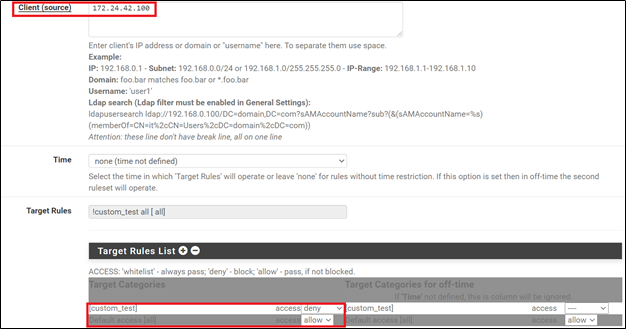
In Target Rules enter the URL filtering policies for the user. In this case the domains mentioned in the “custom_test” ruleset will be blocked while all other websites will be allowed for this user.
Logging
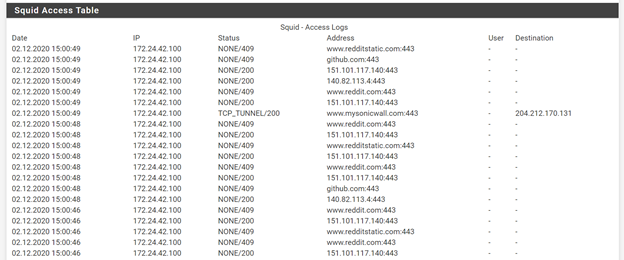
The websites being visited by users are shown in the Squid access logs:
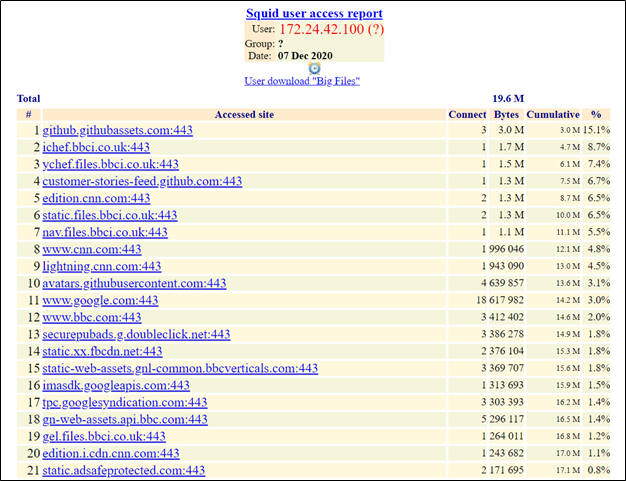
Another tool for Squid reporting is LightSquid. To use it install the Lightsquid package. Then set it up by going to Status => Squid Proxy Reports. Configure its settings and click on the Refresh Full button. Then click on the Open Lightsquid button to access Lightsquid reports. It can give per-user (per-IP) reports of domains visited by the user as well as the data transferred:
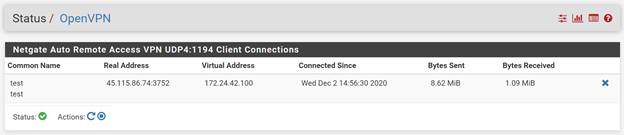
The total upload/download of a user can be seen in Status => OpenVPN:
To enable remote logging to a syslog server, go to Status => System Logs => Settings and click on Enable Remote Logging. Enter the IP address(es) of remote syslog servers and select the log categories:
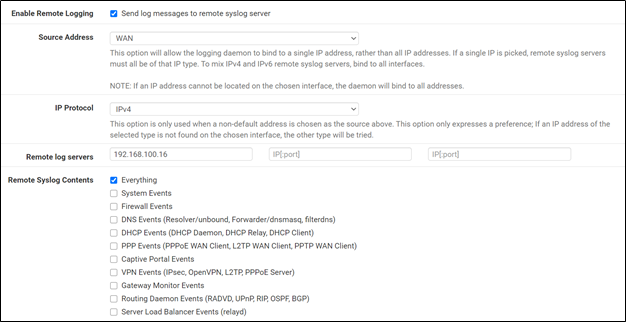
By selecting Everything all syslogs from the pfSense appliance including Squid logs would then be available on the Syslog server.
SquidGuard logs of blocked sites are available in /var/squidGuard/log/block.log and by default cannot be sent to syslog. To send them to syslog we can use another technique. Access pfSense via SSH and enter the following command:
tail -f /var/squidGuard/log/block.log | logger -p local4.info &
It will start sending all new entries in /var/squidGuard/log/block.log to syslog. It should also be possible to create a cron job or script for starting this function automatically after reboot. It is left as an exercise for the reader.
References
https://openschoolsolutions.org/pfsense-web-filter-filter-https-squidguard/